
When moving a website to a new host, the critical first step is updating your Domain Name System (DNS) to point the domain’s A record to the new hosting IP address. On platforms like GoDaddy, you might complete this update, only to find that your domain keeps resolving to multiple, old IP addresses simultaneously.
This often leads to intermittent website access, frustrating downtime, and confusion over which IP is serving your content. The root cause is typically an often-overlooked default or ‘parked’ A record that GoDaddy automatically maintains on the root domain.
Here is the step-by-step fix to ensure your domain only points to the single, correct IP address.
Step 1: Navigate to the DNS Management Panel
Log in to your GoDaddy account and navigate to the Domain Settings for the affected domain. Find and select the Manage DNS option.
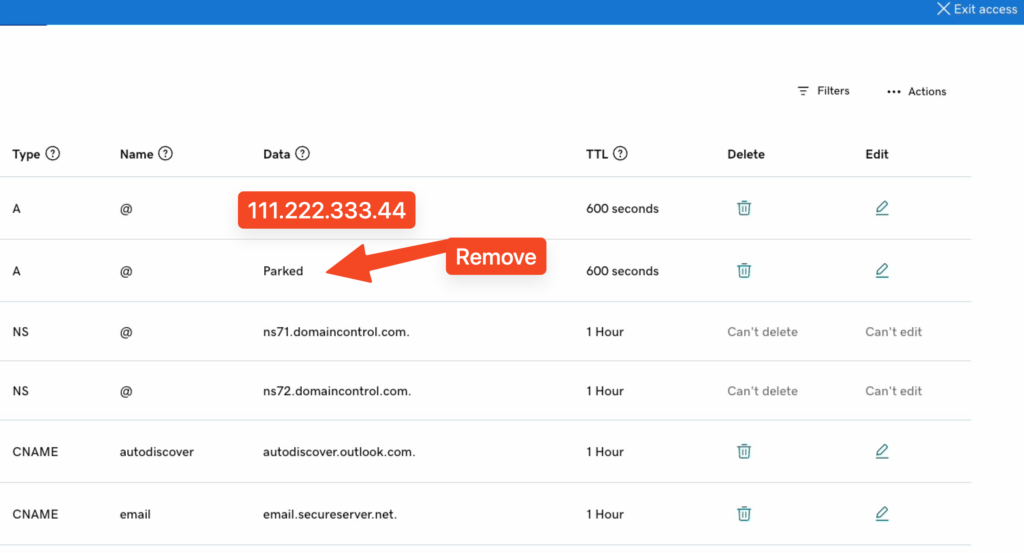
Step 2: Identify and Isolate the Problematic A Record
Once in the DNS Management panel, look through your list of A records. You will be looking for multiple records that have the host field set to either @ (the root domain) or * (a wildcard).
-
The Correct A Record: This is the one you recently updated, pointing the
@Host to your new, intended IP address (the one you want your website to use). -
The Problematic A Record: You will often find a second, conflicting
Arecord, typically an old parked record or a default setting from GoDaddy, also set to the@host, but pointing to an old, incorrect IP address. This is the one causing the conflict.
\
Step 3: Delete the Conflicting (Parked) A Record
You must eliminate the conflicting A record to force your domain to rely solely on the new, correct A record.
-
Locate the row with the incorrect IP address that is still resolving when you check your domain.
-
Select the options menu (often three dots) next to this record.
-
Choose Delete and confirm the removal.
Important Note: Do NOT delete the A record that points to your new, correct hosting IP address. Also, leave any A records that are set up for subdomains (like mail or www) unless you are specifically moving them as well.
Step 4: Verify the DNS Propagation
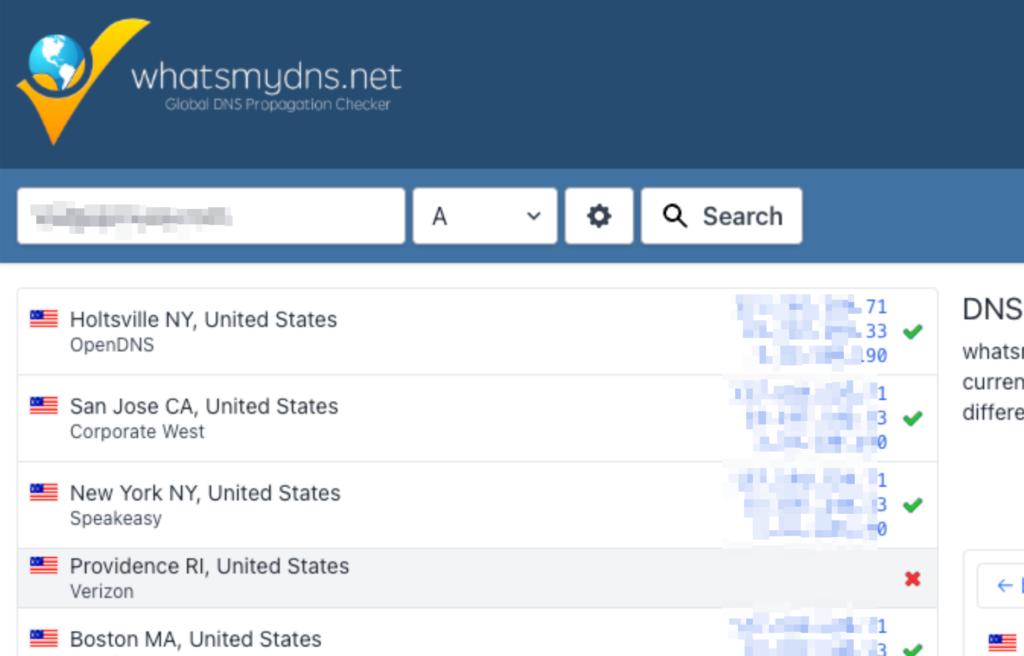
After deleting the record, it will take some time for the change to propagate globally (DNS propagation).
-
Check DNS status: You can use an online DNS checker tool to confirm that your domain is now only resolving to the single, correct IP address. If successful, you will no longer see the multiple IPs causing conflict.
Why This Happens
This issue is common because GoDaddy often adds a default “parked” A record for the root domain as a safety mechanism or a default setting. When you manually add your own A record, GoDaddy, unlike some other registrars, sometimes allows the conflicting record to coexist, causing the domain to use both IPs intermittently. Deleting the extraneous record is the only way to solve the conflict.
Dealing with these frustrating DNS issues is a low-level headache that wastes valuable time. If you’d like to focus on running your business instead of troubleshooting hosting and DNS conflicts, our team can professionally manage these technical details and ensure your foundation is optimized for growth and stability.